Message Approval is a solution that enables a user with ADMIN permissions to approve a message before it is sent. Typically, users with WRITE permissions compose and send messages in Bonfire. When Message Approval is turned on, ADMINS will be notified and be able to approve or reject the message. Let's look at how it works.
NOTE: Message Approval can be activated by your Account Manager.
MESSAGE APPROVAL NOTIFICATIONS
Message Approval notifications are sent via email to all users with ADMIN permissions to the Program in question. The email will include a link to the Message Approval page to review and approve/decline the message.
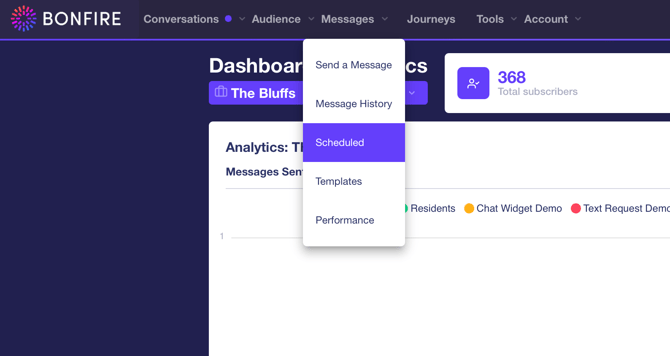
The Message Approval page can be found under Messages > Scheduled.
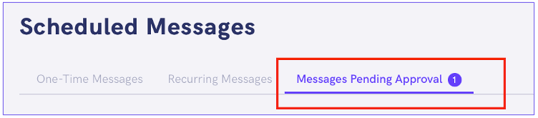
From this screen, click on the Message Pending Approval tab. If there are messages pending approval, you will see a bubble with a number inside.
The Messages Pending Approval tab contains a preview of the message, the date it was submitted for approval, and the name of the user who submitted it. Click on the Details button to review how many subscribers the message will be sent to and the delivery method.
Approve the message by clicking on the green ‘Approve’ button.
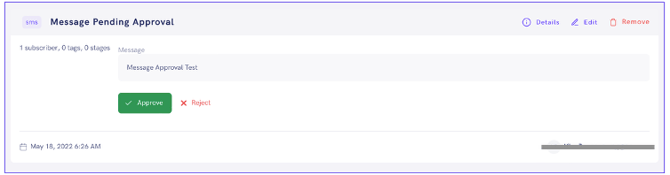
To reject the message, click on the red ‘Reject’ button and provide a reason for rejecting the message.
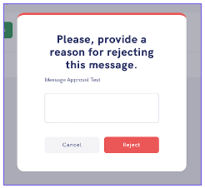
Alternatively, you can delete the message altogether by clicking on the Remove button to the right-hand side of the page.
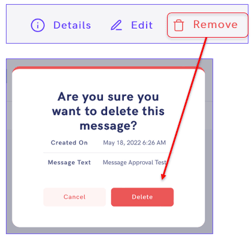
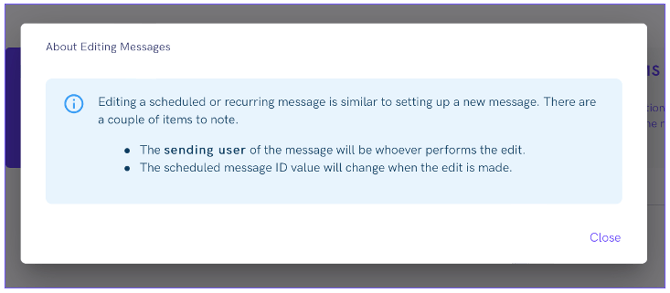
Clicking on the ‘Edit’ button will take you to the Send Message page. It is important to note that editing a scheduled message is similar to setting up a new message. The sending user will be the user performing the edit, not the user who originally submitted the message for approval.