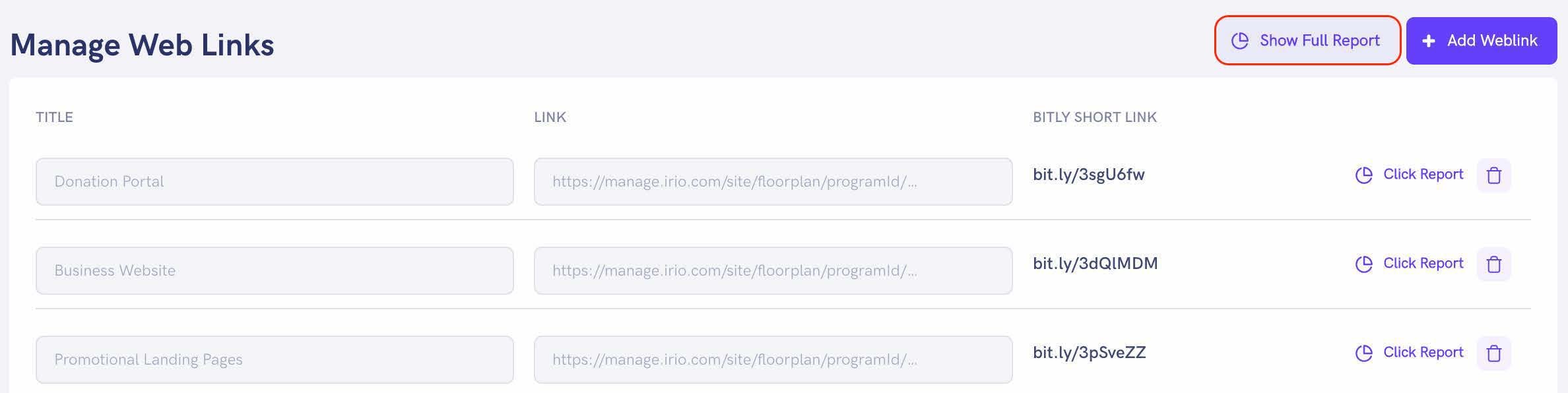
Link tracking offers an easy method to generate short links that direct users to a desired web URL while enabling you to monitor the number of clicks each link receives. We recommend creating links for the following:
• Donation Portal
• Business Website
• Promotional Landing Pages
To create a link,
1. Go to Tools on the top of the screen and click on Link Tracking to display the Manage Web Links page.
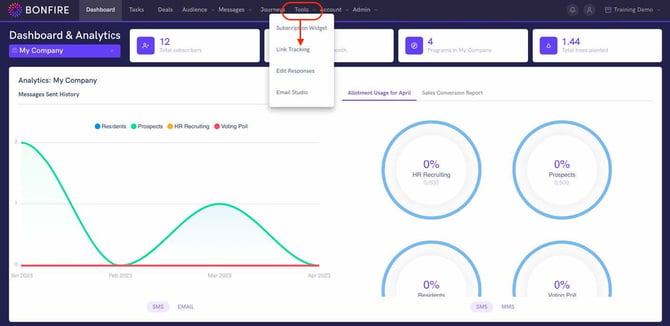
2. Click the Add Weblink button on the top-right of the screen to display a new line item on the screen.
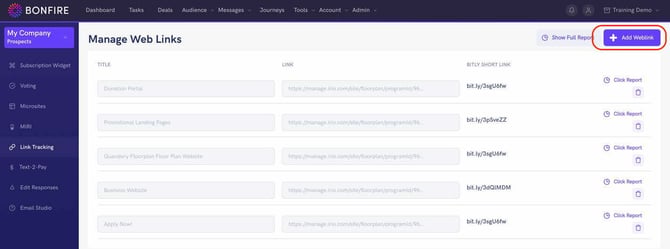
If there are multiple links created, the new line item will display at the bottom of the links.
3. Enter the following information for each field, then click the Checkmark to save the data:
a. Title – This title will be used to identify the link.
b. Link – Paste the web URL you would like to direct the subscriber when they click the short link
4. Click the Generate Short Link button on the far-right of the text fields to generate the short link.
The link will show, allowing you to copy it if needed.
The links will be available automatically on the Send a Message page by clicking the Link icon on the bottom-right of the page.

UPDATING LINKS
Did the web URL get updated for the link? You can update a link with just a few steps!
To update a link:
1. Go to Tools on the top of the screen and click on Link Tracking to display the Manage Web Links page.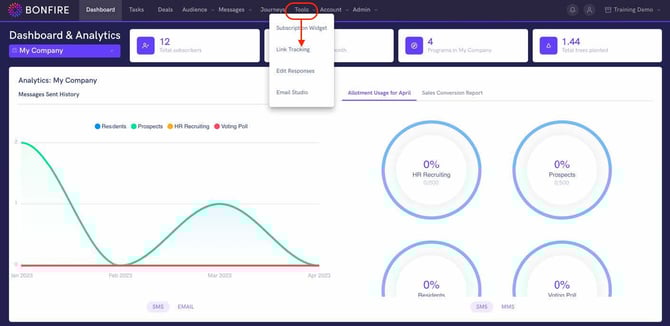
2. Click the Link text field and paste the web URL into this field, then click the Checkmark button to save the new web URL. A new short link will appear to the right of the text fields.
VIEWING THE NUMBER OF CLICKS
The platform provides a click report for the number of clicks a shortened link had when utilized in your
campaigns.
To view the number of link clicks:
1. Go to Tools on the top of the screen and click on Link Tracking to display the Manage Web Links page.
2. Click on Click Report on the far-right of the link you wish to view clicks. A pop-up of a line graph with the number of links per day by hovering over each spike.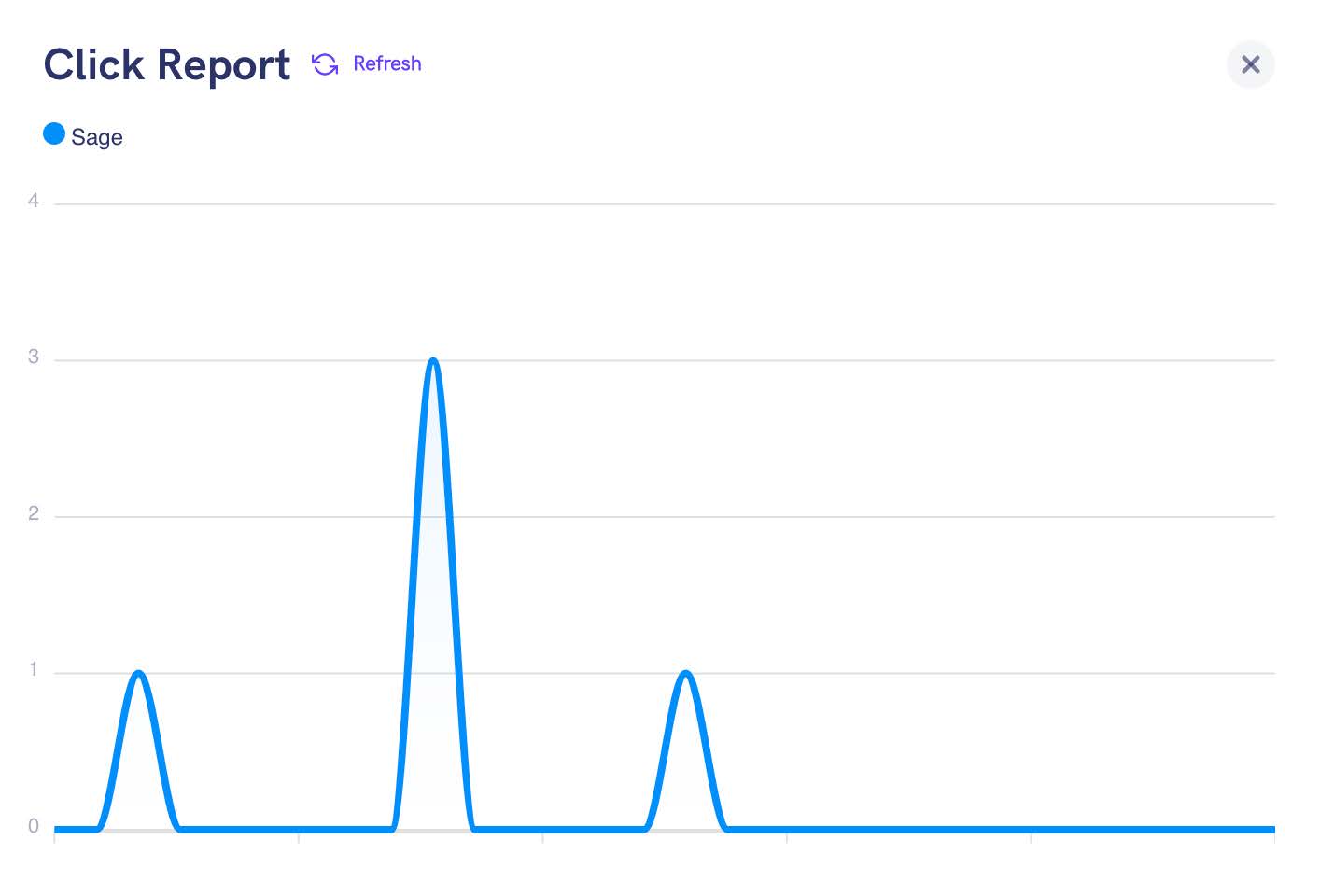
You can view overall performance for all links by clicking the Show Full Report button on the top-right of the Manage Web Links page.