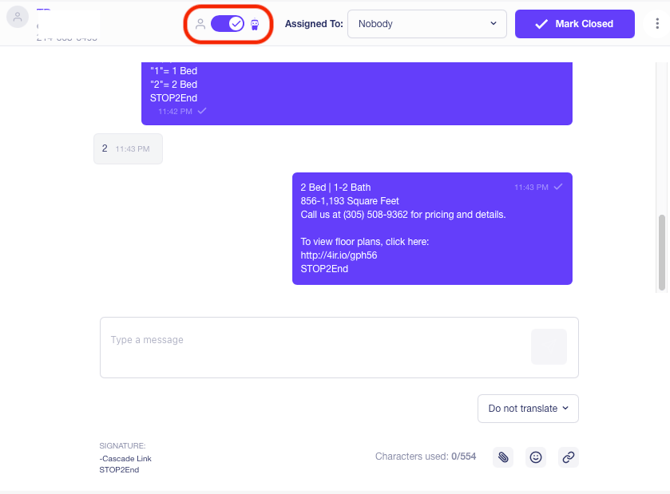
All responses. All channels. One place. Here you can view incoming text messages AND emails in our Conversations Inbox and respond to them. You can filter and find messages, mark conversations closed, assign them to different users, use AI support, it’s all here!
A CENTRALIZED VIEW
The Inbox allows you to view conversations across multiple Program Groups (think of these as different locations of a multi-location business) giving you global insight into activities across your portfolio.
Bonfire also allows for further grouping by region or purpose (such as residents & prospects) – this will have been configured for you during your onboarding. To select these options on the Conversations page, there is a selector at the top.
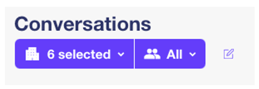
The left-hand option opens a list of available Program Groups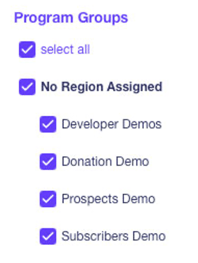
The right-hand option opens a list of Program Purposes. This is useful, for example, if you want to view all prospect programs across a portfolio.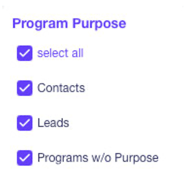
STARTING A NEW CONVERSATION
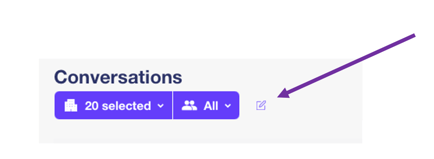
You can start a new conversation by clicking on the ‘create new’ button next to the Program Group selector.
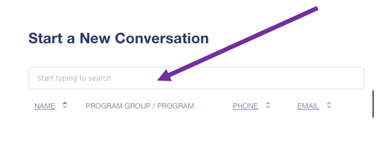
From there, type the name or number of the person you wish to communicate with in the search box. Select their name and click the ‘Start Conversation’ button.
FILTERING THE INBOX
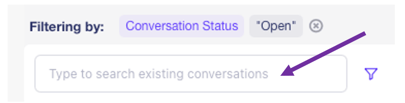
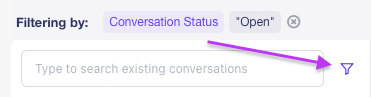
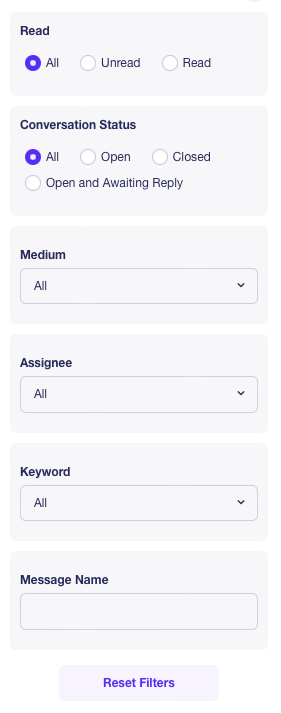
You can find existing conversations in the Inbox by using the search box or the filters button.
- Search Box: Search by name, email, or phone number, then hit the Enter key on your keyboard to search.
- Filters Button: Filter through the Conversations Inbox using the following:
-
- Read/Unread - Filter by read and unread messages. These messages are denoted by a small purple dot.
- Status – All, Open, Open and Awaiting Reply, or Closed
- Medium – Email, SMS, or both.
- Assignee – Drop-down list of all users for the program.
- Keyword – Drop-down list of all active keywords for the program.
VIEW AND RESPOND TO MESSAGES
The Conversations Inbox displays both lead and subscriber responses to your messages. You can also view and respond to incoming messages in the Command Center on the Dashboard.
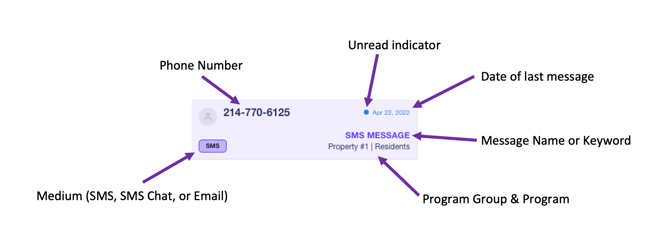
A typical entry in the Inbox includes the following information:
- For SMS conversations, phone number will be shown (and name if it is available)
- For EMAIL conversations, email address will be shown (and name if it is available)
- Keyword or Message Name (if applicable)
- Date and time the last message was received
- A blue dot that represents the latest message has not been read
- Medium (SMS, SMS Chat, or EMAIL)
- Program Group name and Program name
To open the Inbox:
Click on Conversations. 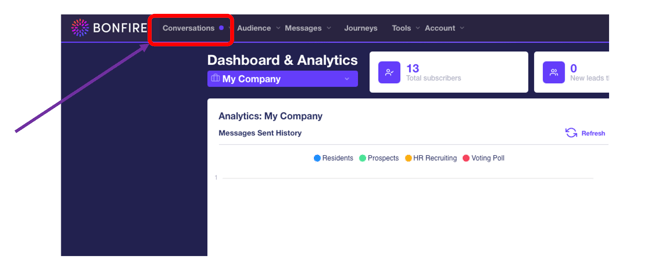
On this page, you will see a screen similar to the following:
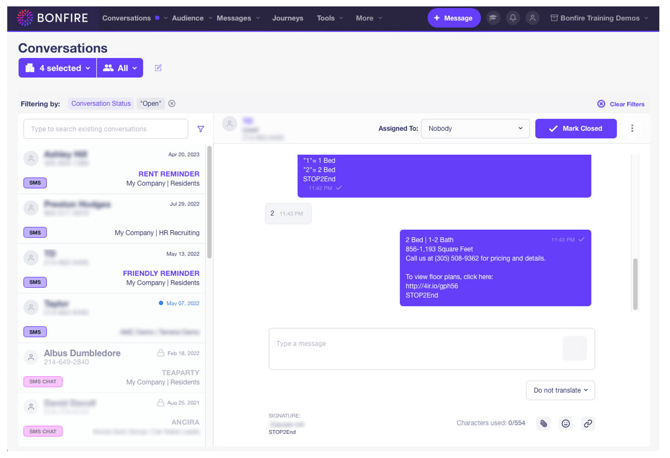
Find a conversation (or start a new one) and place your cursor in the compose box.
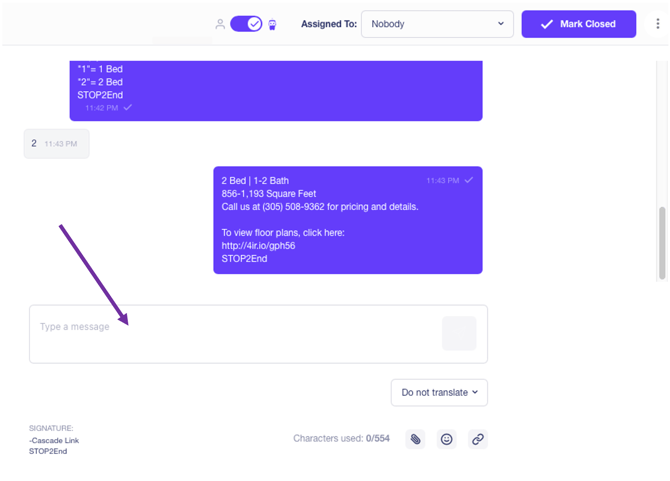
Type the message in this field and click Send button on the far-right to send the message, then it will display in the conversation above.
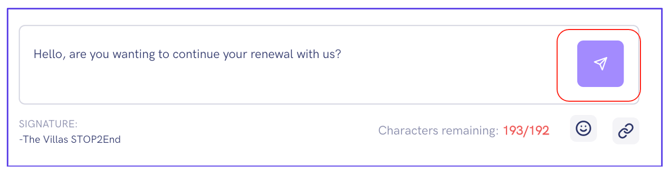
You can also add the following:
- Emojis – Add some fun to your messages by using emojis.
- Short Links – Add a link to direct your subscribers to a link, PDF, video, etc. You can do this on the Tools -> Manage Links page
- Attachments
SWITCH BETWEEN AI AND HUMANS
MIRI, our AI virtual assistant, is capable of managing SMS conversations with leads. However, recognizing that not every interaction should be automated, we have implemented a feature that allows any conversation to be transferred back to a user for personalized attention.
Note: you must have MIRI enabled to use this feature.