
After you’ve logged in, you will be taken to Bonfire's Dashboard. The Dashboard provides you with a snapshot of your program, such as allotment usage, number of messages sent, and lead count.
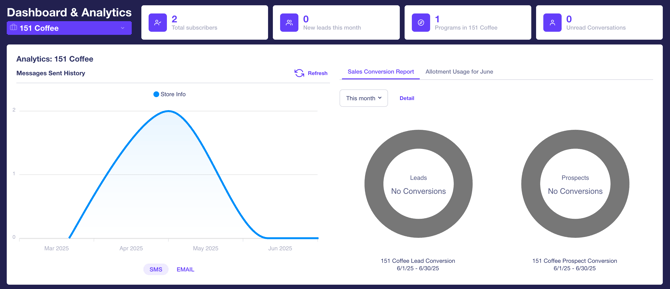
If you have an unlimited allotment, you will not see the allotment count and percentage
used in the circle graphs to the far right. This is purely informational for allotment
packages.
SELECT AN ACCOUNT
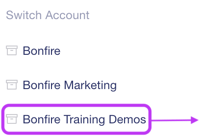
Our platform provides multiple permissions that enable you to navigate between accounts.
To select an account
- Move the cursor to the top-right of the screen and click on the account name to display a drop-down list with all available accounts.

- Select an account, and the screen will display the program groups available on the top left of the screen.
SELECT A PROGRAM/PROGRAM GROUP
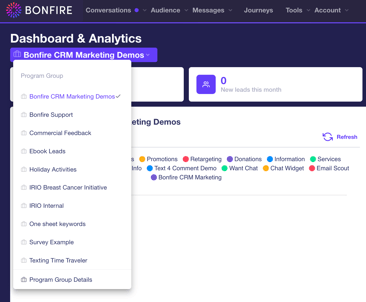
Our platform provides multiple permissions that enable you to navigate between a program group and a program.
To select a program/program group,
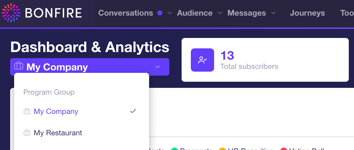
- Move the cursor to the top-left of the screen and click on the program group or program name to display all available programs with your permissions.

- Click on the program group, then the program you wish to access. The screen will then be directed to the current tab you are in, with the program group and the program’s data.
USER SETTINGS
As a Bonfire user, you have access to multiple settings for your account, including the following:
- Name
- Login Name
- Password
- Notifications
- Account Permissions
To update your user settings,
- Click on the User
 button on the top-right of the platform to display a drop-down list, then click the Profile button to direct you to the User Details page.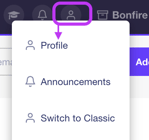
-
You have the option to make changes to the following:
- Name – A text field to update your name. This will be displayed in the Assigned To drop-down list for contacts.
- Login Name – A text field to update your email address. This will be your login name when you log in to the platform.
- Change Password – A button that provides you the capability to change your password for your access.

-
Desktop Notifications – A checkbox that allows you to disable/enable desktop notifications for incoming messages and new leads that are generated with a prospect keyword.

-
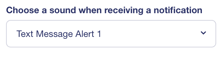
Notification Sound - A drop-down list that provides you with multiple notification sounds to select for your desktop notifications when received.
- Name – A text field to update your name. This will be displayed in the Assigned To drop-down list for contacts.
- You can view your account permissions at the bottom of the page, as well as program permissions.

BONFIRE IN DARK MODE
Dark mode is a user interface for content that displays light text on a dark background. Dark mode is beneficial for those viewing device screens in the evening. The reduced brightness can reduce eye strain in low-light conditions. Our platform provides the option to switch the screen to dark mode.
To change the platform to dark mode,
- Click on the User button on the top-right of the platform to display a drop-down list, then click the Dark Mode button, and the screen will switch to dark mode.
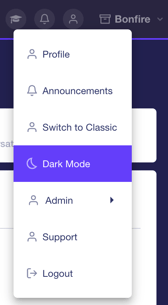
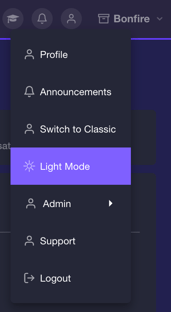
- You can switch to light mode by clicking the Light Mode button in the User drop-down list.
BONFIRE SUPPORT
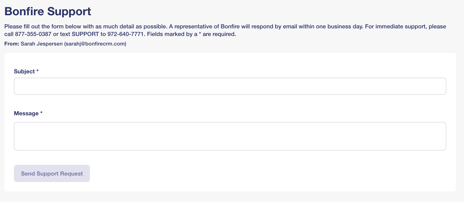
With our partnership, you have multiple ways to contact support for any questions or issues you may have. You can reach Bonfire support by filling out a form that you can access on the platform.
For immediate support, you can call us at 877-355-0387 or text SUPPORT to 972-640-7771.
To submit a Bonfire Support form:
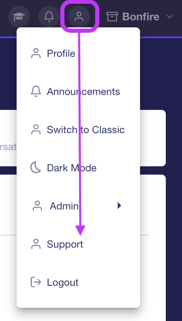
- Click on the User button on the top-right of the platform to display a drop-down list, then click the Support button to be directed to the Bonfire Support page.
-
Fill out the form as much detail as possible, and one of our support team members will respond by email within one business day, then click the Send Support Request button at the bottom left of the screen.
NOTIFICATIONS
As a user, you will receive an email notification and a desktop notification when you receive an incoming message or a new lead is generated by a keyword. A desktop notification will provide a sound along with a red badge with the number of unread notifications in the notification toggle.
To view your notifications in the platform,
- Click the Notifications
 toggle on the top right of the page to display a Notifications pop-up with all notifications.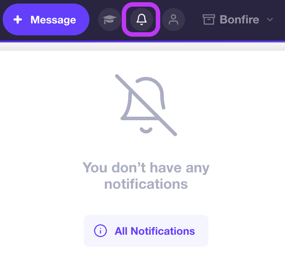
- View All Notifications – Click the All Notifications button to open the Notifications screen, displaying all notifications. You have multiple functions that you can do within the pop-up:
- Delete a Notification – Click the Delete button to receive a pop-up on the screen to confirm you want to delete the notification from the platform.
-
Clear a Notification - Click the Clear button to clear the notification from the toggle. You can view the notification once cleared if you click the All Notifications button within the toggle pop-up.