
- Web app
- Sound
- Badge
- Mobile App
- Sound
- Pop-Up
If you have a program with the capability to manually upload contacts, you will receive an email notification when the subscriber import has been completed.
To clear a notification,
- Go to your Notifications toggle on the top-right of the screen and click on All
Notifications at the bottom of the pop-up, and then you will be directed to the
Notifications screen.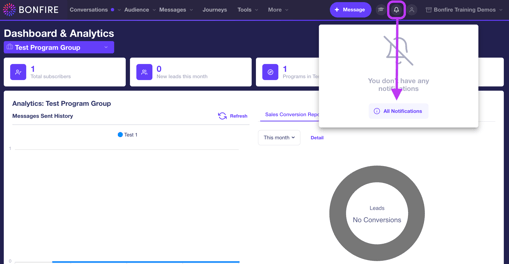
- Click on the Delete button on the far right of the notification to display a pop-up
on the screen.
You can delete all notifications by clicking the Delete All button on the top right
of the screen. - Click the Delete button to confirm deleting the notification.
MOBILE APP NOTIFICATIONS
Our mobile app provides you the capability to receive notifications in real-time on your mobile device. This will allow you to connect with a new lead and subscriber.
To view your notifications using our mobile app,
- Go to your Bonfire app on your mobile device and click on the Menu button on the top left to display the menu, then tap on Notifications at the top of the screen to display all notifications.
- You can click on a notification to do the following:
- Dismiss a notification – This will remove the notification from your
notification list. - View Chat – You will be directed to the message allowing you to respond back to the subscriber.
- Dismiss a notification – This will remove the notification from your
EMAIL NOTIFICATIONS
If email notifications are enabled, you will receive an email notification in your inbox. This will help you stay engaged with your subscribers by clicking on a button within the email notification that will direct you to the new lead, message(s), or contact list.
DESKTOP NOTIFICATIONS
If Desktop notifications are enabled, a user will be able to receive alerts in the platform. The notifications badge icon will update and, if activated, a sound will alert the user to the notification. This notification badge can be located at the top right of the screen, next to the user icon, where the bell is located.
To update your notification settings,
- Click on the User button on the top-right of the platform to display a drop-down list, then click the Profile button to direct you to the User Details page.
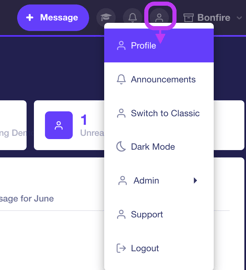
- You can do the following for your notifications:
- Desktop Notifications – A checkbox that allows you to disable/enable desktop notifications for incoming messages and new leads that are generated with a prospect keyword.
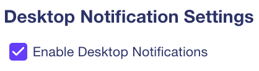
- Notification Sound - A drop-down list that provides you with multiple notification sounds to select for your desktop notifications when received.

- Desktop Notifications – A checkbox that allows you to disable/enable desktop notifications for incoming messages and new leads that are generated with a prospect keyword.
MANAGE NOTIFICATIONS
To manage your notifications, you can visit the User Details page to update the notifications you would like to receive and the timing you would like to receive them.
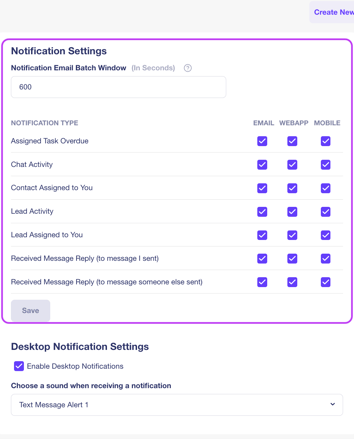
You will see here in the image that you can select or deselect the various types of notifications you can receive, and the mediums by which you would like to receive them. By default, all options are checked to ensure nothing is missed and users get maximum value from the platform.
To update the window in which you receive notifications, select the “Batch Window” setting and enter the desired time frame to receive notification messages. This setting will only activate if there are multiple notifications triggered within the custom window that is set.