ACCOUNT MESSAGES
Account Messages allow you to send messages across the entire account, saving you time and resources and centralizing communications. This article explains how it works.
NOTE: Only users with Account Admin level permissions will be able to send Account Messages.
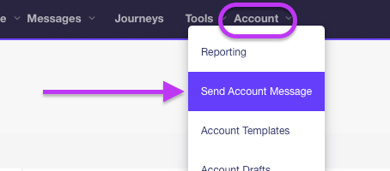
To get started, click on Account -> Send Account Message
MESSAGE TYPE
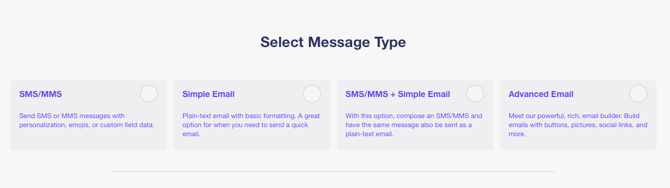
The next screen will be familiar to those who send regular messages through Bonfire. Select which type of message you wish to send. All message types are available for Account Messages - SMS/MMS, Simple Email, SMS/MMS + Simple Email, and Advanced Email.
THE DESIGN TAB
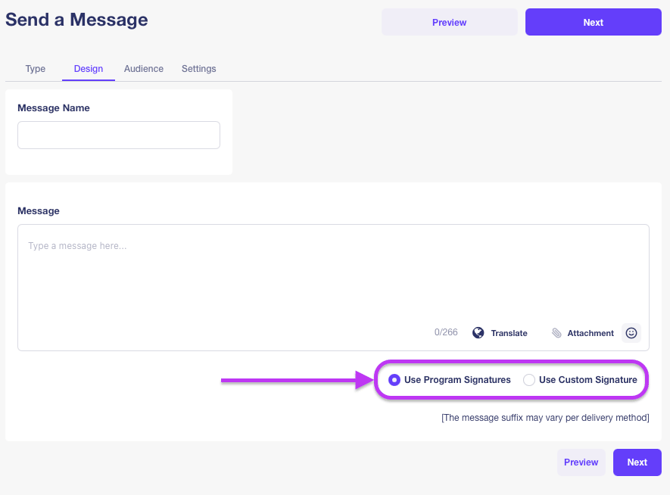
3. Clicking 'Next' will take you to the Design tab. Here you compose your message and add any attachments, emoji, or translation features.
NOTE: Personalization is not available at present for Account Messages, as some Program Groups will have different personalization fields.
The screenshot below shows the option of using the Program Signatures or one Custom Signature. If Program Signatures is selected, the message will append the appropriate Program signature for each message. For example, if a Marketing Manager is sending an Account Message to residents of Property #1 and Property #2, and selects the 'Use Program Signatures' option, residents at Property #1 will see their own property's signature as the sender, and likewise for those living at Property #2. Using a Custom Signature will append the same signature for both Property #1 and Property #2.
THE AUDIENCE TAB
The audience tab is where the magic happens. Not only can you select some or all your Program Groups, you can also select Regions or other groupings unique to your account.
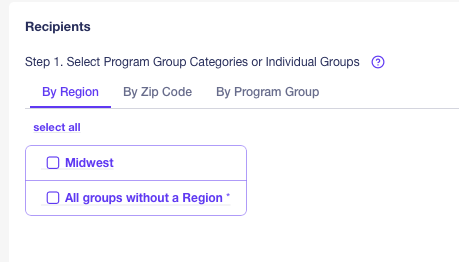
Step 1.
In the first step, you begin with broad strokes. Select a region or regions, program groups, anything you like.
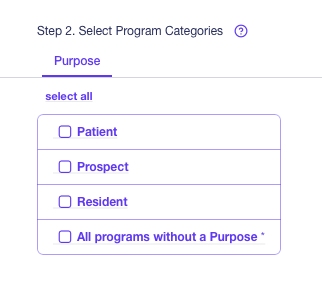
Step 2. Select a Program Purpose. This is a sub-grouping that allows even more granular control over who will receive your message. For example, most Purposes default to Prospect and Resident, but this can be customized to your particular needs by your Account Manager.
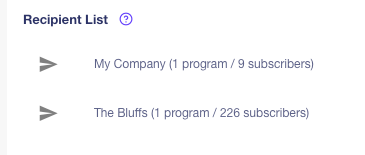
As you make these selections, the Recipient List will update in real-time, giving you an idea of the number of recipients exist for each selected Program Group.
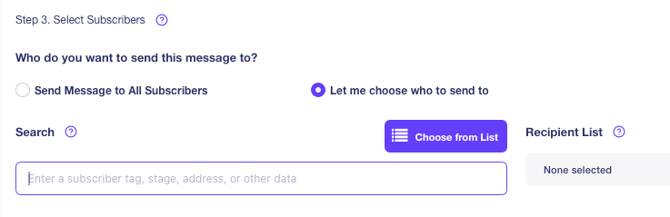
For most use cases, you'd be ready to send the message after Step 2. But Bonfire offers a Step 3 for those who need even more granular control. This step allows you to choose a tag, email, phone, and any custom data that may exist on the selected Programs.
THE SETTINGS TAB
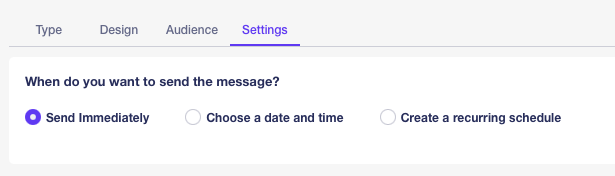
The Settings Tab offers the same functionality as seen when sending a regular message. Users can choose to send the message immediately, at a date/time in the future, or on a recurring schedule.