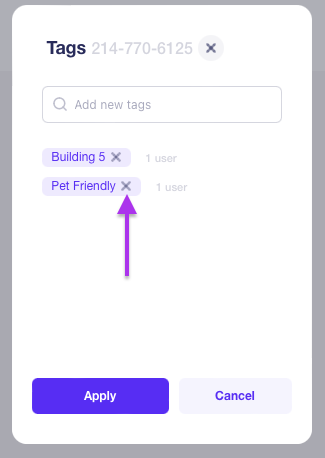
Tags are very useful for targeted campaigns to your contact list. Tags can be preferences like “1 bed floorplan” or “July Move Out” to help you segment and direct messaging toward a specific audience. You can send messages only to groups of subscribers that contain a particular tag(s).
To create a Tag, do the following:
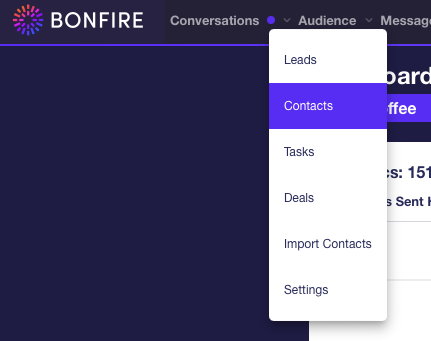
- Go to Audience in the top navigation menu and click on Contacts to direct you to the Contacts page.
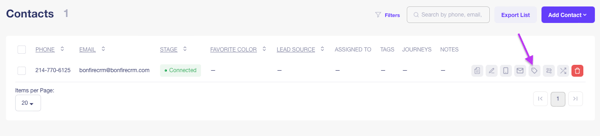
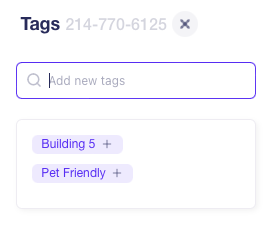
- Click the Tag button on the far right of the subscriber to display the Tags pop-up.
- Enter the tag name you wish to create into the Add new tags text field on the top of the pop-up, then the Create {tag name} button below this field to add the tag to the subscriber
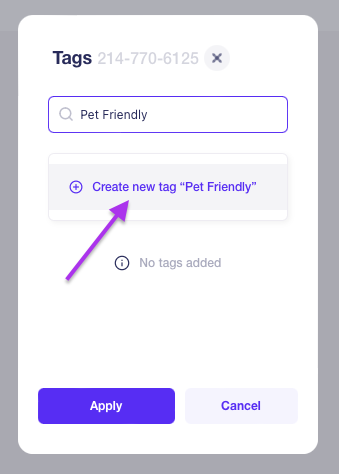
- Any active tags for the program will display below this field. You have the option to add any available tag to the subscriber by clicking the Add symbol to the right of the tag.
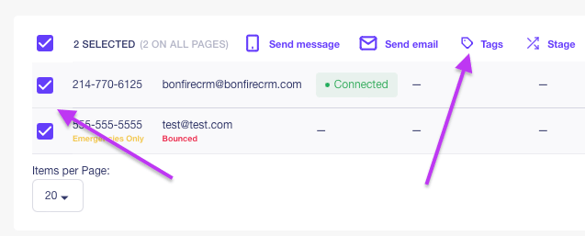
You can add a tag to multiple contacts by doing the following:
To remove tags, open the Tags dialog again and click the 'X' to remove tags from the selected Contact.