
TEMPLATES
Templates are perfect for avoiding the hassle of typing out the same message multiple times. Let’s learn how to create one!
CREATING A TEMPLATE
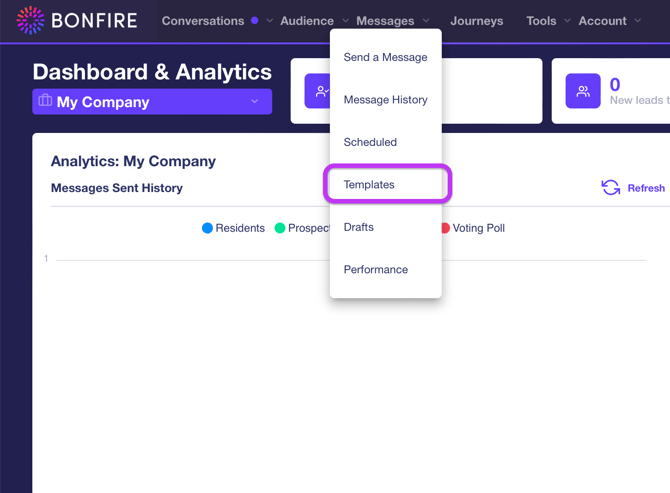
Go to the Messages page and click Templates from the drop-down list to direct you to the Templates page.
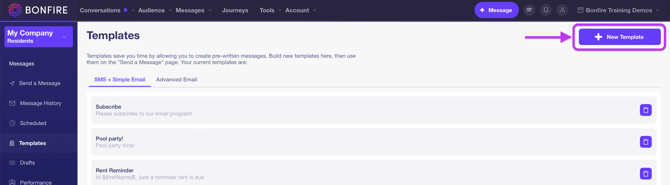
Click the + New Template button on the top-right of the screen to display the New Template pop-up.
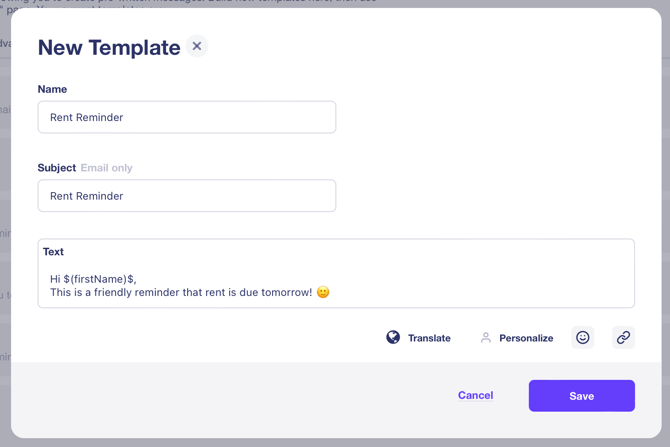
- Name – This field will help your team identify the template.
- Subject – Enter a subject in this field if this is an email template. Not a required field.
- Text – The message for the template, including the following fields:
- Personalize – Use the $(firstName)$ field to tell Bonfire to place the first name from the contact’s page of the recipient into the message. If the recipient's first name is not available, Bonfire will remove the field from the message for that recipient.
- Emoji – Add a little fun to your message by including an emoji.
- Translate - Feel free to translate your message into other languages.
- Links - Be sure to add any URLs to your message. Links can be created on the Manage Links page under Tools.
Click the Save button on the bottom-right of the pop-up. The template will be displayed on the Templates page and can be accessed in the Templates drop-down list on the Send a Message screen.
EDITING TEMPLATES
Once your template has been created, you will be able to access all the templates on the Templates page. You have the capability to edit or delete a template, as needed.
You have two options for a template and must be on the correct tab to create each template type:
- SMS + Simple Email
- Advanced Email
To edit a template:
Go to the Messages page and click Templates from the drop-down list to direct you to the Templates page. From there, click on a template to edit it.
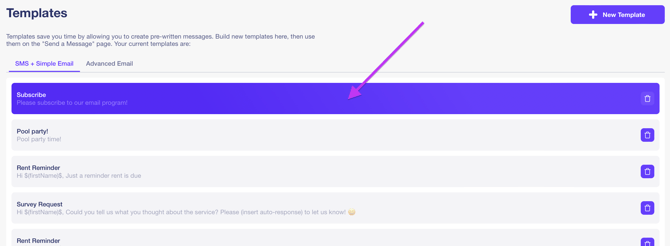
Make updates as needed, then click the 'Save' button. To delete a template, click on the 'Trash' icon, as shown below:
