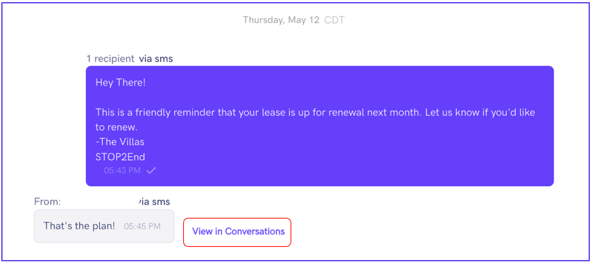
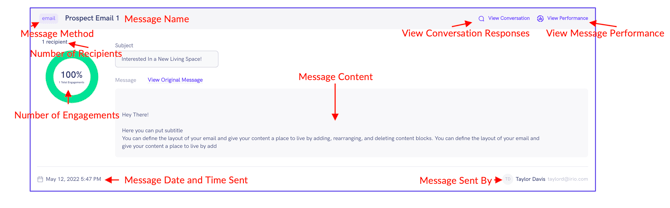
The Message History page allows you to view all the messages that have been sent with the most recent at the top.
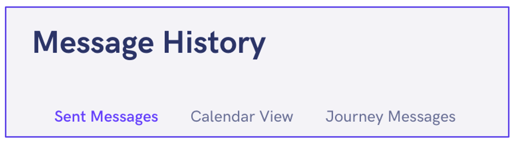
The page has the following tabs:
- Sent Messages – View your sent messages.
- Calendar View – A monthly calendar of your scheduled and sent messages.
- Journey Messages – Displays your messages per journey.
FILTER MESSAGE HISTORY
Bonfire CRM provides you a tool to filter through your Message History by specific filters.
To filter through your message history:
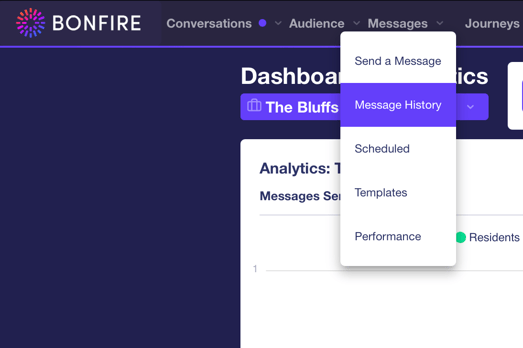
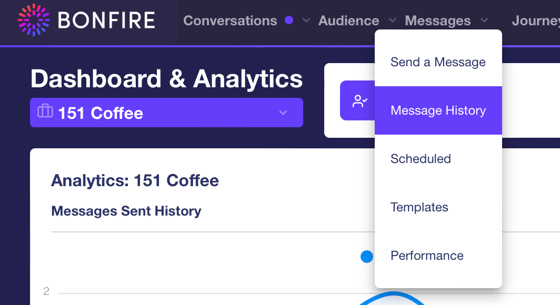
- Go to Messages on the top of the screen and click on Message History to display all sent messages.
- Click on Filters on the top-right of the screen to display the following filters to display the message you are searching for:
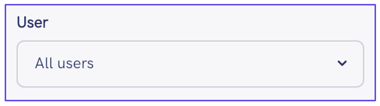
- User – a drop-down list of all users that have access to the platform
- Medium – a drop-down list of all mediums including the following:
- Text Message
- Message Name – a text field to enter the message name of the sent message
- Date (Start and End) – A calendar pop-up to select the start and end date of the date range for the message.
- User – a drop-down list of all users that have access to the platform
VIEW CONVERSATION FOR SENT MESSAGES
You can view all the messages you have sent in the Sent Messages tab, including the responses by each subscriber. When you send a mass message, the message is sent individually enabling the one-on-one response from your team.
To view the conversation,
- Go to Messages on the top of the screen and click on Message History to display all sent messages.
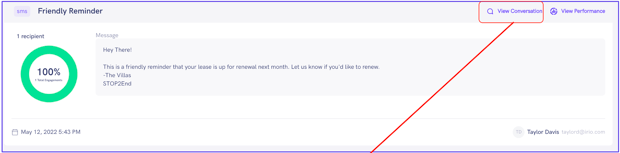
- Click on View Conversation on the top-right of the conversation you wish to view individual responses to.
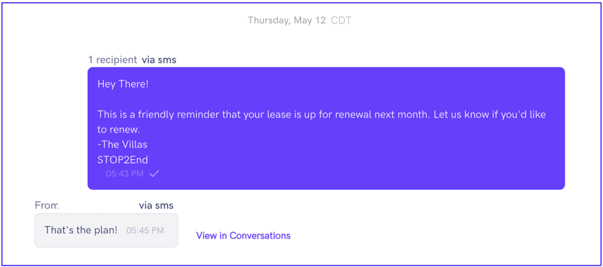
- If you wish to respond to an individual response, click the View in Conversations to the right of the response to display the conversation in the Inbox.