
IMPORTING CONTACTS
In Bonfire you have the option to manually upload your contacts without having to enter them one by one.
NOTE: For users with integrations to PMS systems, this option may not be available, as Contacts are automatically imported. Manually imported Contacts would be overwritten from data in the PMS system.
To manually upload contacts:
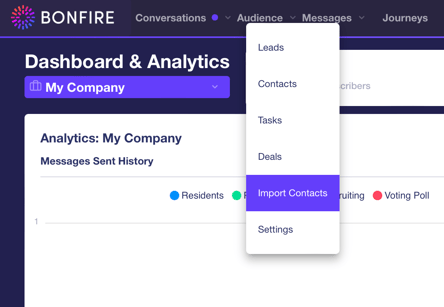
- Go to Audience tab on top of the screen and click on Import Contacts to direct you to the Import Contacts
- Drag a CSV, XLX, or XLSX file into the Upload Box or click on the choose a file link.
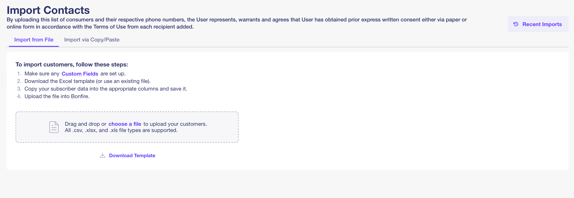
If you have not imported Contacts into Bonfire before, click on the Download Template link to download an Excel file to your desktop.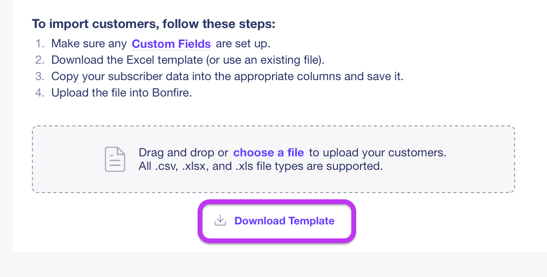
The template file will include the column headers, including any custom fields. Copy and enter your subscriber data into the correct columns, including name, phone, email. Not all are mandatory, but the import must include either a phone or email address.
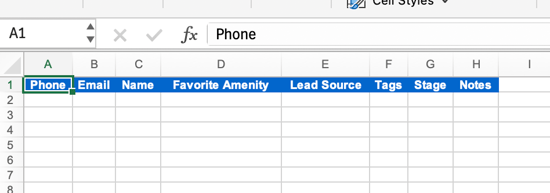
Formatting your data is very important for the following fields and their formats:
- Phone number
- xxx-xxx-xxxx
- xxxxxxxxxx
- Tags
- Use the “Pipe” character in between the tag names if you wish to had multiple tags to a contact. You can press Shift and \ on your keyboard to use this character.
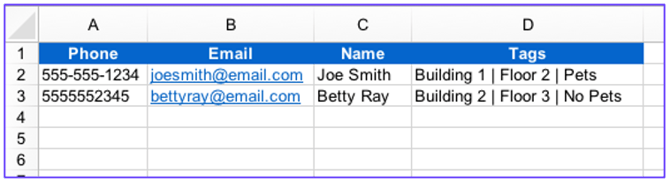
- Use the “Pipe” character in between the tag names if you wish to had multiple tags to a contact. You can press Shift and \ on your keyboard to use this character.
- Phone number
- The Contact Import File Upload pop-up will display the mappings between the columns in the spreadsheet and the existing columns in Bonfire. Choose what to do with existing Contacts that aren't in the upload file (either merge the uploaded list into the existing Contact list, or replace existing Contacts with those in the upload file).
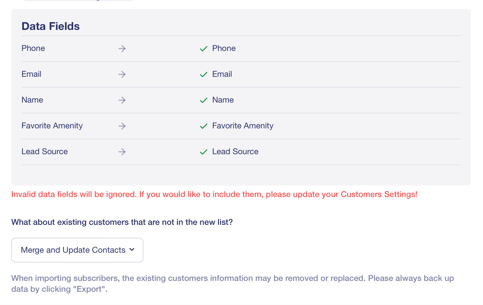
- Click Import to begin the import process. When it is complete, you will receive an email notification.
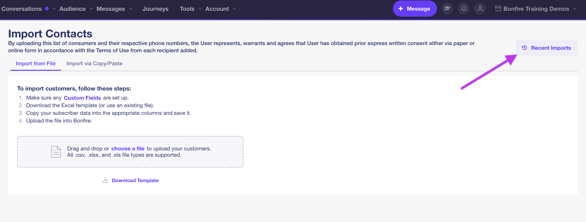
- You can also view recent imports by clicking on the Recent Imports button
EXPORTING CONTACTS
In Bonfire, you can export Contacts by going to the Contacts page and clicking on the Export List button.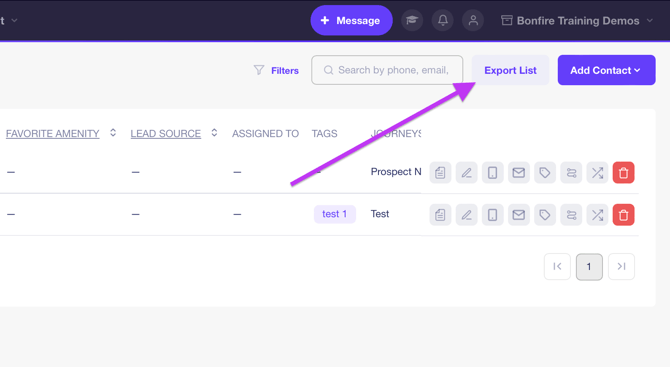
This will download a CSV file of all the Contacts in the contacts list.