EDIT LEAD RESPONSE TREE
One offering from our lead generation solution is a mobile keyword that people can text in to a designated phone number to receive more information. In regards to more information, the data will be displayed in what’s called a “response tree.” Your Account Manager creates the response tree, but you have the capability to edit the responses people receive when texting in. Admin permissions are required to complete this task.
To edit your response tree,
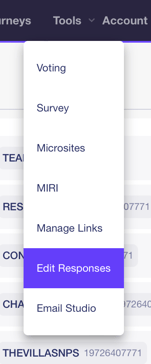
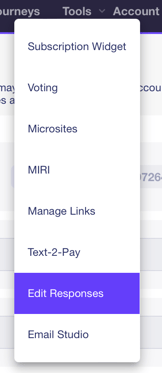
- Go to Tools to display a drop-down list, then select Edit Responses to display all your active keywords.
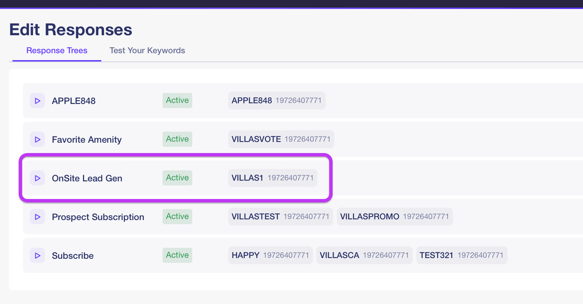
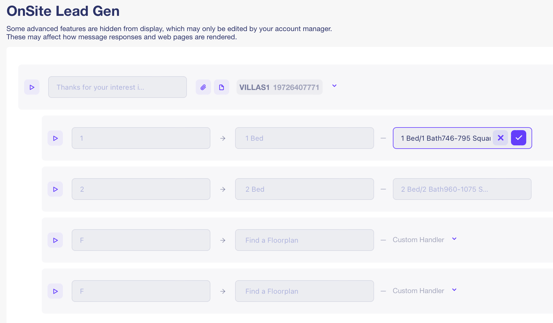
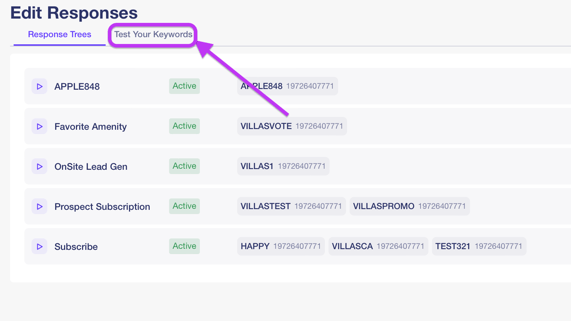
- Click on the keyword you wish to update. In this example, we'll click the OnSite Lead Gen keyword, VILLAS1.
You can click the Play button to the far-left of the keyword to display the response tree on a mobile device simulator.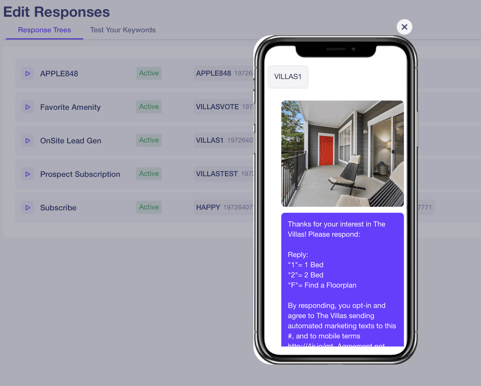
- Click in the text field for the response you wish to update and make the changes as needed, then click the Checkmark button to save the changes.
- Click the Attachment button to add an image to the response tree, then drag the file into the Media Attachments pop-up to upload. The image will display in the pop-up once uploaded successfully.
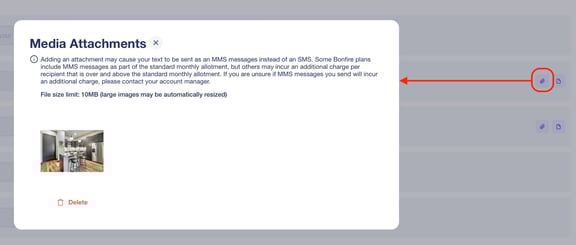
You can upload an image by clicking the Upload button at the bottom of the Media Attachments pop-up to display your desktop files to select an image to upload.
- Click the Delete button under the image to remove the image from the response tree.
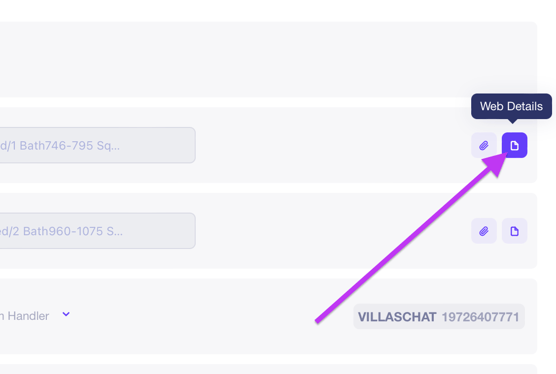
- Click on the Web Details button on the far-right of the response to display the Web Details pop-up to do the following:
- Images – View the images that are available for the node response and have the option to add and delete images in this pop-up.
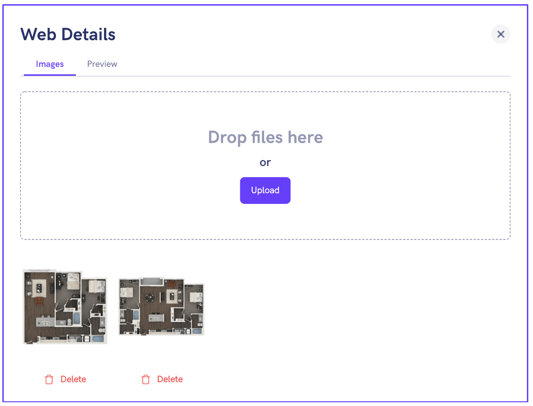
- Preview – Preview what the subscriber will receive when they click on the link within this node to view images.
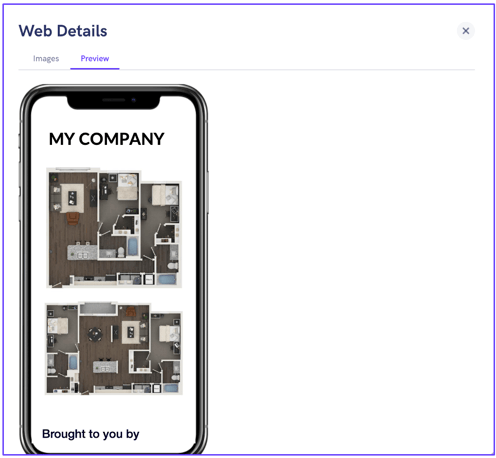
- Images – View the images that are available for the node response and have the option to add and delete images in this pop-up.
TEST KEYWORD
You could test your keyword by using your mobile device, but Bonfire allows you to test the keyword from inside the platform.
To test a keyword,
- Go to Tools to display a drop-down list, then select Edit Responses to display all your active keywords.
- Click on the Test Your Keywords tab on the top of the sreen. On this screen, you will see all available keywords to test.
- In the Available Keywords section on the left of the screen, you can test a keyword as a subscriber/non-subscriber by clicking the toggle.
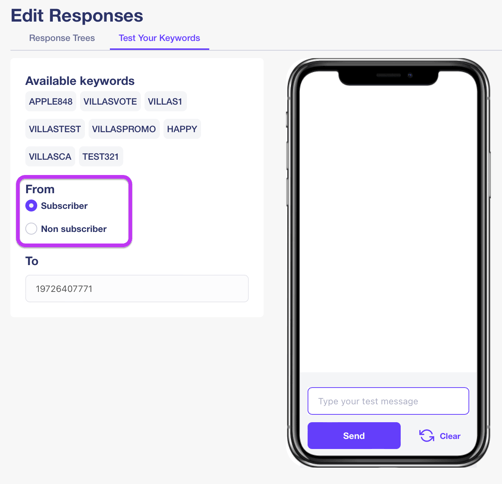
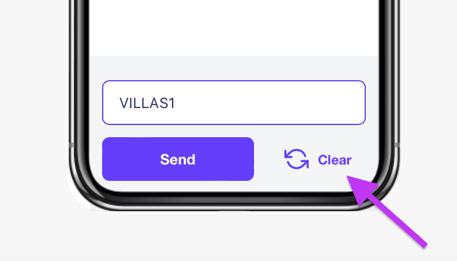
The To field will auto fill the 5-digit short code/10-digit long code that is assigned to your program. - Drag your cursor to the mobile devive on the right into the text field and type the keyword you wish to test, then click the Send button to display the response.
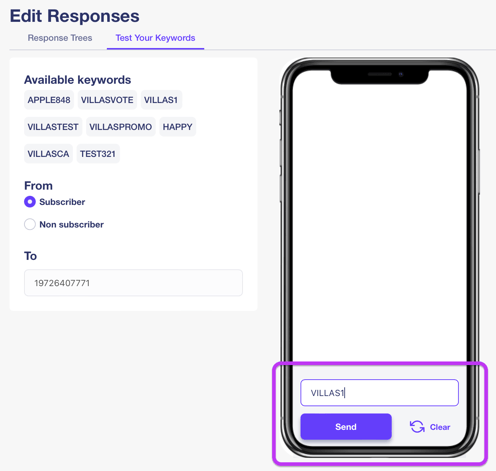
You can use this text field to response to the response tree to see other responses the subscriber will receive. - Click the Clear button on the bottom-right of the mobile device to reset the test.