
Bonfire offers an unlimited supply of custom KEYWORDS designed to generate qualified leads for your property. These keywords are applicable for marketing, sales, and operational purposes. A prevalent use case is facilitating easy access to floorplan details, tour scheduling, application submissions, and live chat with AI or leasing agents. Our platform seamlessly integrates with your property management software, allowing you to display these stages alongside your leads.
To access Leads:
- Navigate to the Audience tab at the top of the screen and click on Leads.
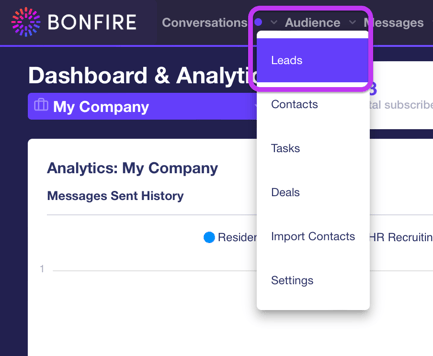
- On this screen, you will be able to see data from just your lead texting in your custom keyword, including the following information:
- Phone
- Keyword
- Stage – if the lead is the following, the stage will auto-default:
- Previous Lead –Returning
- New Lead – New
- Last Accessed
- Assigned To
- Notes
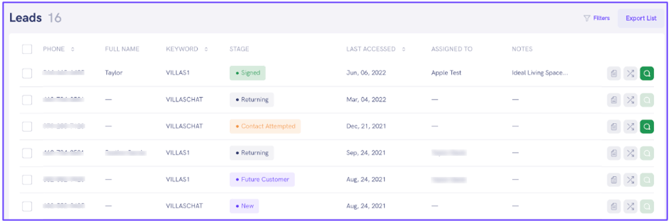
If the lead has opted in to receive communication from your team, the chat bubble on the far-right will be active.
FILTERING LEADS
Filtering is great for searching your list for a particular value, including phone number, tag, name, etc. These filters will narrow down a large list of results.
To filter a lead,
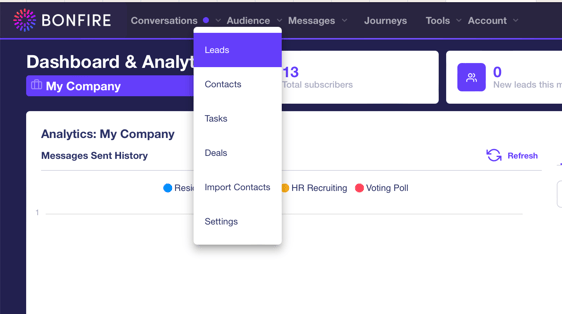
- Go to Audience tab on top of the screen and click on Leads to direct you to direct you to the Leads
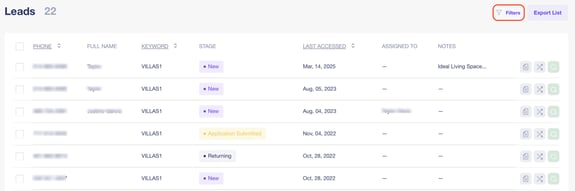
- Click the Filter button on the top-right of the screen to display the Filters side-panel on the right of the screen.
- You can filter your list by the following filters:
- Last Accessed Start and End Date – Click on the Calendar button to display a monthly calendar to select the date the lead was last accessed.
- Assigned To – Select a team member from the drop-down list to filter the leads by the assignee.
- Keyword – Select a keyword from the drop-down list to filter the leads by the keyword the lead texted in.
- Stage – Select a specific stage to filter the leads by a specific stage associated with the leads.
When the filter(s) have been selected, the leads will display in the leads list to the left depending on the filters specified.
SAVE A FILTER CUSTOM VIEW
The Bonfire platform provides the option to save a custom view of one or multiple filters.
To save a custom view by specific filters:
- You have the option to save this filter view by click on Save as a Custom View button on the bottom-left of the filters panel on the far-right of the screen.
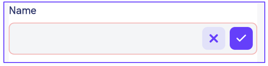
- Go to the Custom View tab on the top of the filters panel on the far-right and enter a name for the custom view you would like to save, then click the Checkmark button on the far-right of the text field.
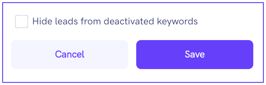
- Select your filters you wish to filter your lead’s contact page and click the Save button on the bottom-right of the filters side panel to the far-right.
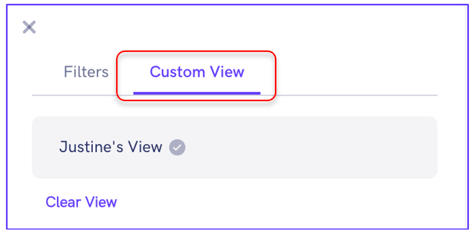
- The custom view will be displayed in the Custom View
ADD NOTES
Taking notes is a very important tool and our platform provides this tool for you and your team. You can add notes to a lead for a future reference for you and your team.
To add notes,
- Go to Audience tab on top of the screen and click on Leads to direct you to direct you to the Leads
- Click on the Notes button on the far-right of the lead you wish to add notes to display a Notes pop-up.

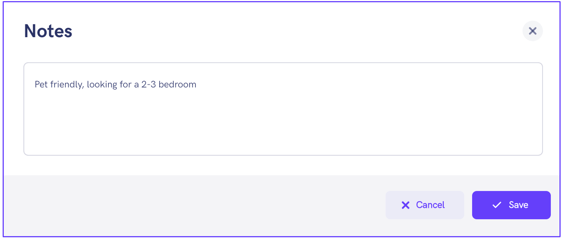
- Click the Edit button on the bottom-right of the pop-up and enter the notes in the text field.
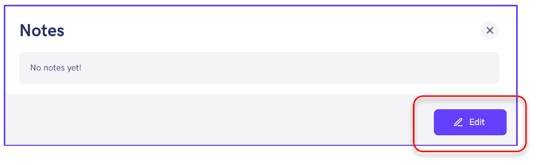
- Click the Save button on the bottom-right of the screen to display the updated notes.
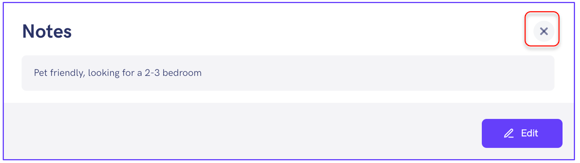
- If the notes look good, click the X button on the top-right of the pop-up to return to the Leads
You can also add notes to the lead by clicking on the lead’s contact page and click the Notes tab on the top of the screen.
UPDATE LEAD INFORMATION
Keywords are important because they help generate leads. Once the lead texts in the keyword, our system collects the phone number along with the data from the custom questions provided with your custom fields.
To update a lead contact information,
- Open the Leads page again.
- Click the lead you wish to update and you'll be directed to the lead’s contact page.
- The lead’s contact information can be updated for the following fields:
- Full Name
- Assignee – you have the option to assign a team member to the lead
- Stage - the stage will auto-default to the following stage if the lead is:
- Previous Lead –Returning
- New Lead – New
- Disable Notification – disable any notifications from a specific lead. This is not recommended, but you have the option to turn notifications off.
- Live Chat – the Go to Chat button will go active if the lead opts in to receive communication from your team
You can view the message history with the lead from the time the lead texted in the prospect keyword in the Messages tab on the top of the lead’s contact page.
