
With Bonfire's survey solution, businesses can gather valuable feedback from consumers in
real-time. And the best part is that it can be done through SMS. This increases the
likelihood of a completed survey and increases the speed of data capture.
To begin a survey, a business can either display a keyword to be texted in (i.e., Text
“Feedback” to 47464) or, through auto-response, a message can be sent out to an
audience requesting the survey (i.e., Hi, there. Reply Y to take the survey).
ADD A SURVEY
If you are interested in adding a new survey to your program, reach out to your account
manager to create the survey, including providing the keyword you wish the participants
would text in to take the survey.
UPDATE A SURVEY
Once the survey has been created, you have the ability to update the survey questions
with admin permissions.
To update the survey,
- Go to Tools on the top of the screen and click on Survey to direct you to the
Surveys page.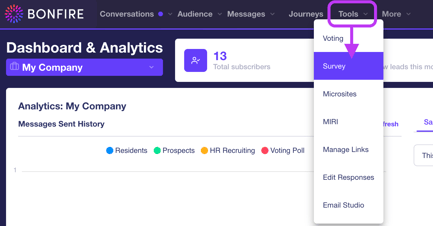
- If you have multiple surveys, you can select the survey you wish to update by
clicking on the drop-down list of available surveys on the top of the screen to
display the survey questions below.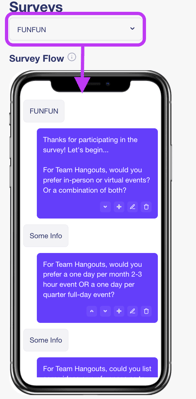
- You can do the following to update the survey:
- Rearrange – Click the Up and Down arrows, you can rearrange the
order of the questions. - Add Question – Click the Add button will allow you to add a question to
the survey. - Edit Question – Click the Edit button to update the survey question
verbiage. - Delete Question - Click the Delete button to remove the question from
the survey.
- Rearrange – Click the Up and Down arrows, you can rearrange the
VIEW SURVEY RESULTS
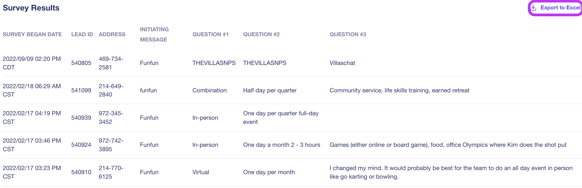
Our platform allows you to view the results of each survey participant, including each
response to each question.
To view the survey results,
- Go to Tools on the top of the screen and click on Survey to direct you to the
Surveys page.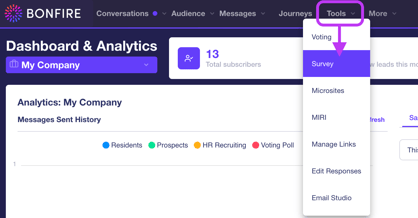
- Scroll down until you view the Survey Results section at the bottom of the
screen.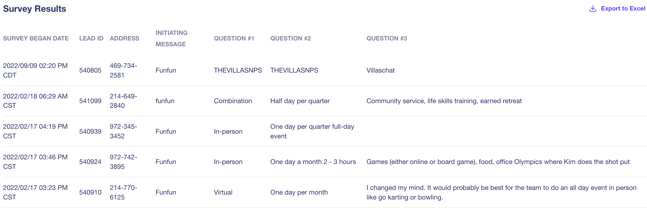
- NPS Survey Results
The NPS survey is part of your resident program to enable you to hear back from
your contacts on their experience. With this solution, you are provided three
charts:- Net Promoter Score (NPS) Survey – This chart provides your score by
separating your survey entries into promoters, passives, and promoters.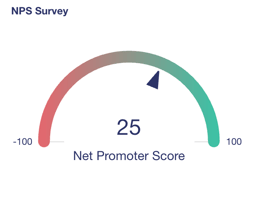
- Satisfaction Score – A circle graph provides a quick snapshot of the total
satisfaction score utilizing the NPS survey “1-10” rating.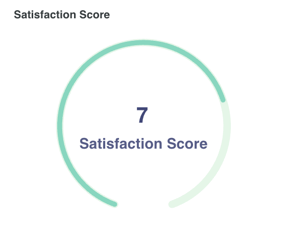
- What should our focus be? – This chart provides a list of categories in which
you can improve by identifying keywords in negative responses from the
feedback.
- Net Promoter Score (NPS) Survey – This chart provides your score by
EXPORT RESULTS
With our platform, you have the option to export the results into an Excel file.
To export the results,
- Go to Tools at the top of the screen and click on Survey to direct you to the
Surveys page.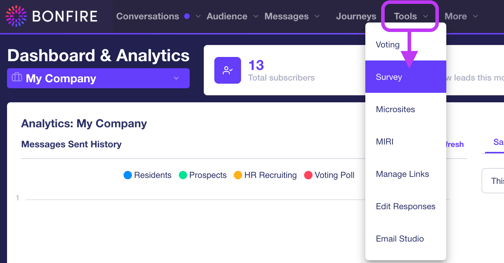
- Scroll down until you view the Survey Results section at the bottom of the
screen.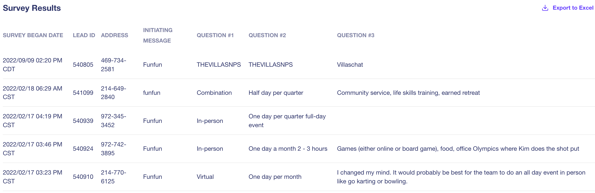
- Click the Export to Excel on the top-right of the Survey Results section, then the file will be downloaded to your desktop to open and save.
- You have the option to export the data for the What should our focus be? chart
on the top-right of the screen by clicking Export to Excel on the top-right of the
chart.