Bonfire provides a solution that utilizes text messaging to support feedback and real-time
insights with live voting. Your subscribers text a keyword to your 10-digit long code (or
5-digit short code) allowing you to hear your subscribers' feedback with the options you
provide. Reach out to your account manager for more information if you don’t have this
solution.
ADD A VOTING CAMPAIGN
Once the voting solution has been set up by your account manager, you have the option
to add a new voting campaign with admin permissions.
To add a voting campaign,
- Go to Tools at the top of the screen and click on Voting to direct you to the
Voting Campaigns page.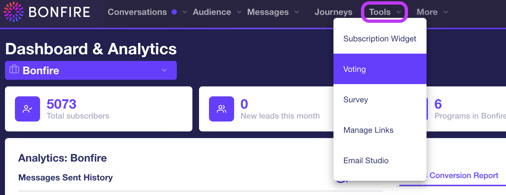
- Click on the + New Voting Campaign button on the top right of the screen to
display the New Voting Campaign page.
- Hover your cursor in the Title text field to click the Edit button on the far right of
the field. Enter a title for this voting campaign to help you identify this campaign, and click the Checkmark button on the far right of the button to save the title.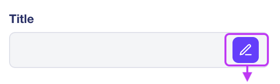
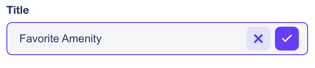
Once a title has been provided, the remaining fields will be active. - Click the checkbox for Active to activate the voting campaign.

You can uncheck this box to deactivate the voting campaign when needed. - Click the checkbox for Publicly Visible to allow the participant to view a bar/pie
chart of live results. This will allow you to project the results in real time on a
screen for everyone to see. This is commonly used for event use cases.
You have the option to view the chart by clicking the Open button on the far-
right of this field.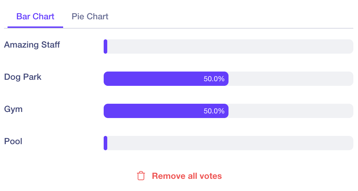
- The Max Votes per Phone Number auto defaults to 1, but you can change this
field by hovering your cursor over this field to click the Edit button on the far-
right of the field.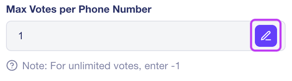
Enter the number of maximum votes allowed per phone number, then click the
Checkmark button to save the changes. Enter “-1” for unlimited votes.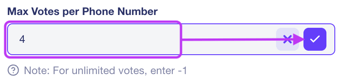
- Click the + New Voting Option button on the bottom left of the page to display
the Voting section at the bottom of the page.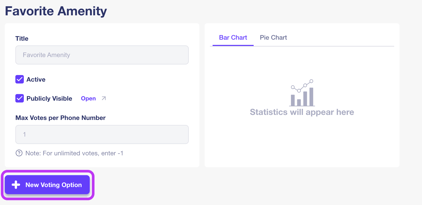
- Hover your cursor in the Voting Option text field to click the Edit button on the
far right of the field. Enter a title for a voting option, then click the Checkmark
button on the far right of the button to save the title.
- Click the + New Voting Option on the bottom left of the Voting section at the
bottom of the page to display a new line item below.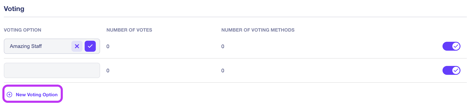
- Once all the voting options are added, click the Generate Response Tree button
on the bottom-right of the page to display a pop-up confirming of
generating a response tree for this voting campaign.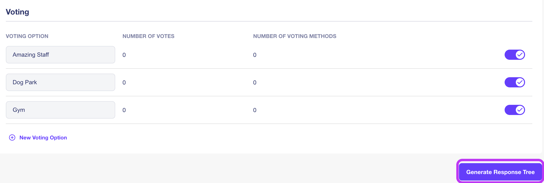
- Click the Generate Tree button on the bottom right of the pop-up, and then you will
be directed to the voting campaign screen.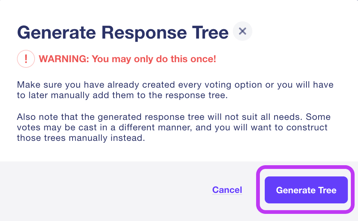
The response tree will be created with the following response text the subscriber
will receive when they make a vote:
Thanks for your vote! Only the first vote per device is counted.
{short link to live results} - A keyword is needed for the voting campaign to be taken by a subscriber. Reach
out to your account manager to add this keyword to the campaign.
EDIT RESPONSE TREE
Once the voting campaign has been created, the platform allows you to update the
responses the subscriber receives when they text the voting poll keyword. For an
example, “Our summer pool party is coming up! Please tell us what sounds the best:”.
You can broadcast voting campaigns to a mass audience through the use of the auto-response tool.
To edit a response,
- Go to Tools on the top of the screen and click on Edit Responses to direct you to
the Edit Responses page.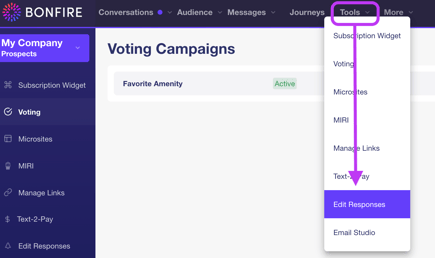
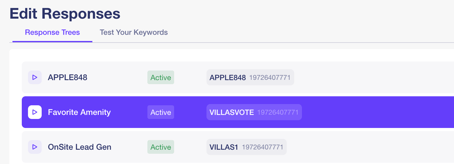
- Click the keyword you wish to update responses, then the Response Tree page of the voting campaign will display on the screen.
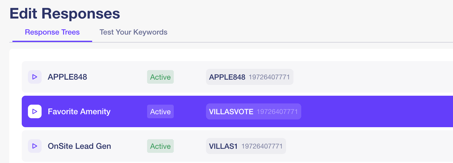
You can click the Preview button on the far left of the keyword to see the first
response tree when the subscriber texts the voting campaign keyword.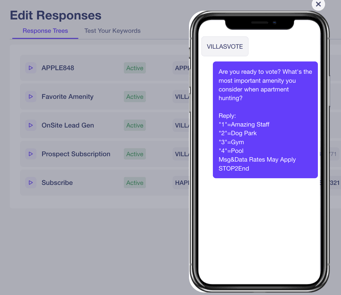
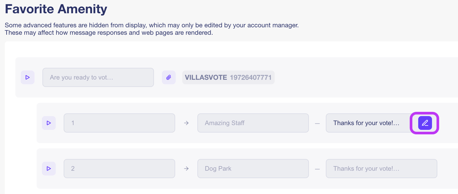
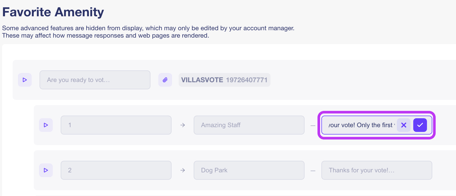
- Click in the response text field to click the Edit button on the far right, then click the Checkmark button to save your update(s).
- Click the Attachments button on the far right of the response to display the
Media Attachments pop-up.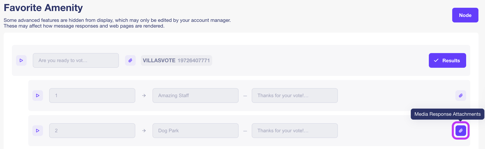
- Grab your file from your desktop and drop the file in the Drop File Here field at the bottom of the pop-up, then the media attachment will display in the pop-up.
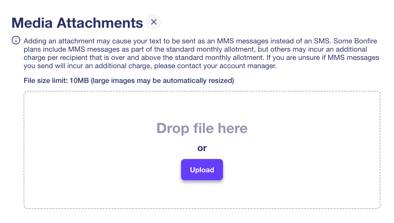
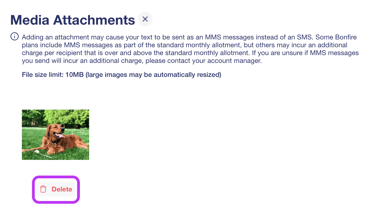
You can click the Upload button to direct you to your files on your desktop. - Click the Delete button at the bottom of the image to remove it from the response tree.
VIEW VOTING CAMPAIGN RESULTS
Our platform allows you to view the results in real time with the following information:
- Number of Votes
- Number of Voting Methods
- Bar and Pie Chart of the results
To view campaign results,
- Go to Tools on the top of the screen and click on Edit Responses to direct you to
the Edit Responses page.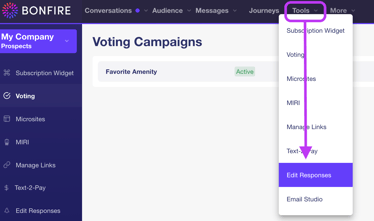
- Click the keyword you wish to update responses, then the Response Tree page of the voting campaign will display on the screen.
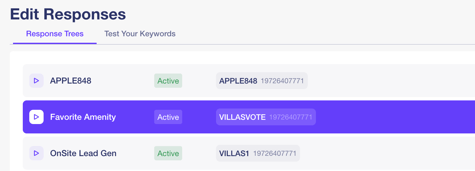
- Click the Results button on the top right of the Edit Response Tree page for the
voting campaign to display the campaign’s page.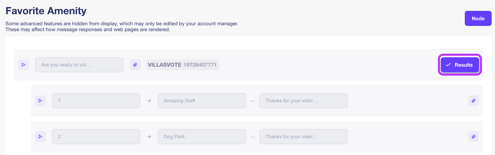
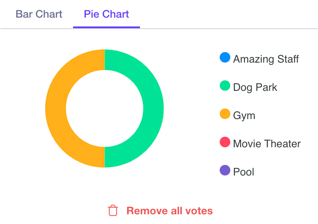
- The results will be displayed in the bar and pie chart on the top right of the page:
- Bar Chart – A bar chart with the percentage of the votes for each voting
option.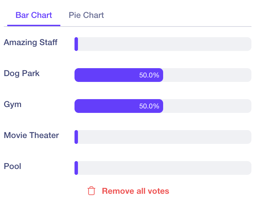
- Pie Chart – A pie chart with the count of each voting option.
- Bar Chart – A bar chart with the percentage of the votes for each voting
REMOVE VOTES
The platform provides the capability to start fresh with the number of votes for the
voting campaign.
To remove all votes:
- Go to Tools on the top of the screen and click on Edit Responses to direct you to
the Edit Responses page.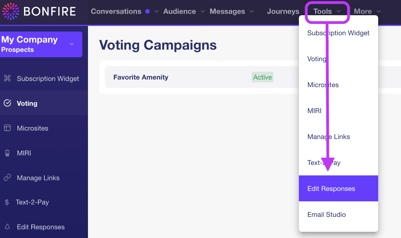
- Click the keyword you wish to update responses, then the Response Tree page of the voting campaign will display on the screen.
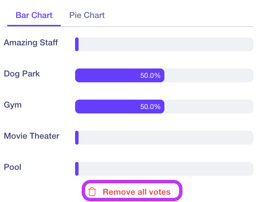
- Click the Remove All Votes button in the Bar Chart or Pie Chart tab and the results will be clear from the charts.