
Messaging your Contacts is easy in Bonfire.
We've already covered sending a message through the Conversations Inbox for those one-on-one conversations, so this article will cover the other ways you can send a message in Bonfire, namely through the Messages -> Send a Message page (for mass messaging) and via the Contacts page.
MASS MESSAGING
To message multiple contacts, navigate to the Messages -> Send a Message page.
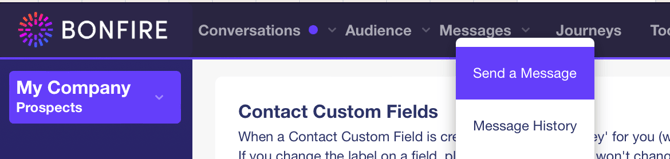
Now select the type of message you wish to send. Your options are:
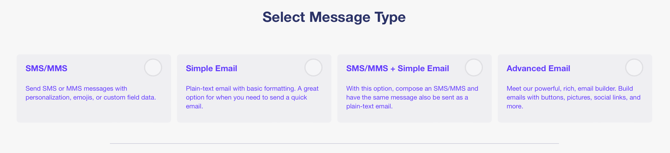
- SMS/MMS - A message destined for someone's cell phone. If media is attached, the message will be sent as an MMS.
- Simple Email - A non-HTML email. Useful for sending simple messages to someone's mailbox.
- SMS/MMS + Simple Email - Compose a message once and have it go to both a contact's phone and email.
- Advanced Email - Bonfire's rich HTML email builder for creating attention grabbing emails. Advanced Email is covered in its own article which can be found here.
For this example, we'll create an SMS message. Click the SMS/MMS button and the click Next.
DESIGN TAB
You'll now be on the Design tab. Here you'll see the following options:
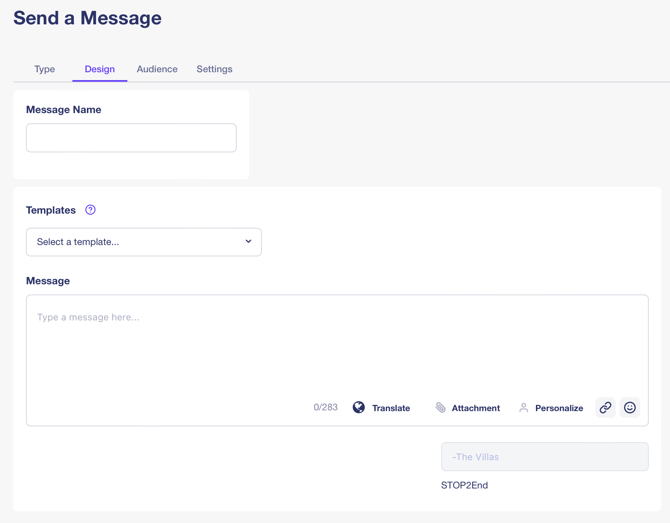
Message Name - This is useful for filtering messages in the Bonfire UI. You can search by this message name to only show these messages.
Templates - Click here to load a message template. Templates are great for reducing repetitive work when sending many similar messages.
Message - This is where you'll write the body of your message. You'll notice some buttons in the lower right side of the box:
- Translate - Our translate feature enables you to send a message in a different language. Simply type your message in English, then select the language from the Translate dropdown. If you don't see a language you need, contact your Account Manager for assistance.
NOTE: Some foreign languages use special symbols and characters that will affect the character count. You will see an alert if this is the case: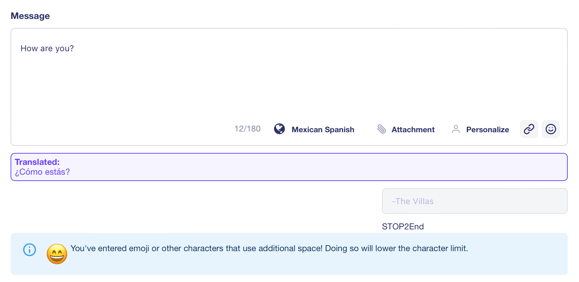
Attachments - The attachments button allows you to upload an image or file you wish to send with the message.
Personalize - Here you can select custom fields such as 'Name' that will insert the actual recipients name into the message. If there is no 'Name' for a particular contact, this field will be ignored for that contact.
Once you've composed your message, click next to go to the Audience tab.
AUDIENCE TAB
The audience tab is where you select who to send the message to. You can opt to send it to all contacts on the program or choose a subset of those contacts.
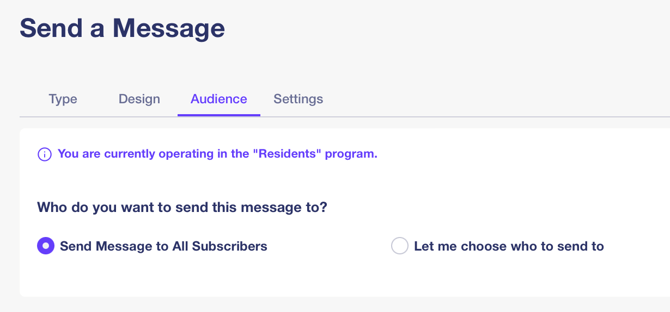
When choosing who to send a message to, you can select via Tag, Custom Field, Name, Phone Number, Stage, or search by text:
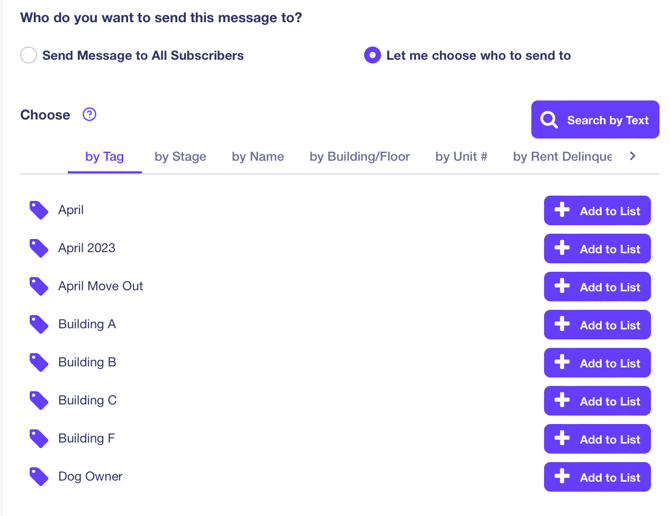
Click the Add to List button to add contacts to the recipient list.
SETTINGS
Once you've selected your audience, click next to go to the Settings page. Here you can choose to send the message immediately, at a later time, or on a recurring schedule.
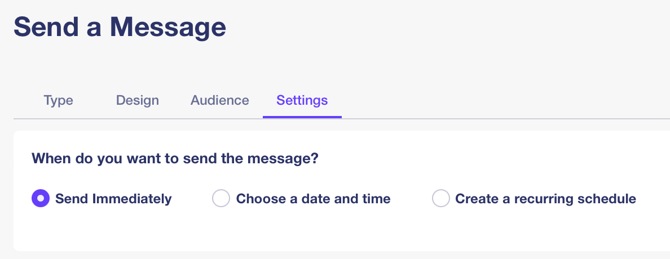
You're now ready to Preview, Confirm, and Send your Message. Congratulations!